


Ask 100 people & most of them will say Netflix is the leader of streaming services. It makes sense given that folks can stream a massive collection of movies/series, & documentaries on it. It won’t be wrong to say that Netflix has changed how people enjoy entertainment these days.
Despite being so popular, many users still don’t know about a lot of useful features on Netflix… Using them can enhance the viewing experience and help you get the most out of this streaming platform.
So let’s look at features of Netflix that you should be using to elevate your experience:
Share Password Safely
Netflix is very serious about password sharing and has taken measures to stop it. It remains to be seen how much money it will save the company but we do know that users don’t like it.
Right now, there are 2 ways to bypass the password-sharing restrictions:
1. Visit the home of the person who has an account. Once there, connect to their home Wifi and then sign in to Netflix on your mobile. After that, you can use Netflix on your mobile wherever you are!
2. If the primary account holder doesn’t use a smart TV or streaming box, then it means the account can’t be associated with a primary household. This means several people can use the same Netflix account on their phones/tablets.
If you want to avoid all the hassle, then just get Netflix accounts for sale from U7BUY. With Netflix premium accounts, you don’t have to worry about any of that (you can stream on multiple devices).
Disable Autoplay Trailers
Almost everyone hates the “Autoplay trailers” which show up the moment you log in… These autoplay trailers come with sound, which can annoy anyone trying to browse the app.
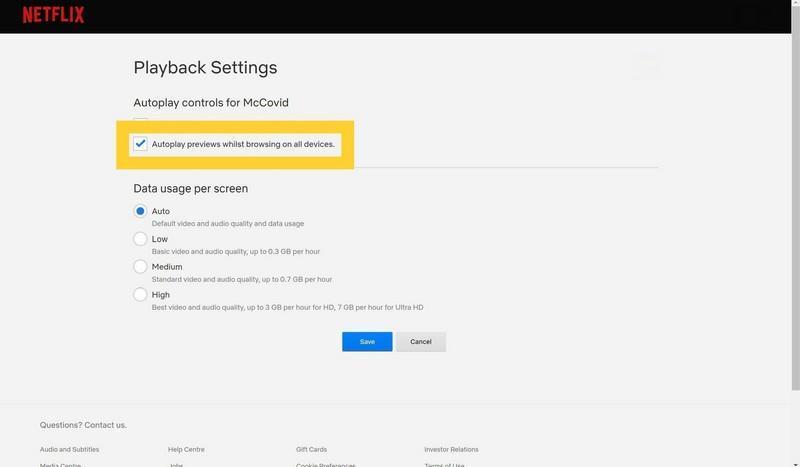
The good news? You can disable it on Netflix via these steps:
-
Log in to Netflix on your browser (preferred).
-
From the profiles section, select a profile.
-
Open Playback Settings.
-
Disable “Autoplay previews while browsing on all devices”.
-
Click on “Save”.
Just like that, the app will not play the trailers automatically (so you can browse in peace). And if you still see them, then restart the app.
Improve Recommendations
Does the platform recommend stuff you have zero interest in? Well, here’s the thing: Watching titles you don’t like out of frustration will only mess up the recommendation algorithm.
You need to tell Netflix what you like and what you don’t like to see recommendations that match your style. So, the next time you see something on Netflix that you really like, press Rate and give it 2x thumbs up. If it is just okayish, then give it x1 thumbs up.
But the most important thing is to use Thumbs Down button if you don’t like a particular title on Netflix. Over time, Netflix will learn your taste and will start to give more relevant recommendations.
Change Subtitles Settings
One thing Netflix really excels at is that it offers subtitles for most of the titles. But you would be surprised to know that the streaming platform allows you to change the properties of subtitles.
So here’s how to change it on Netflix:
-
From the Netflix site or app, go to Accounts.
-
Open “Profile & Parental Controls”.
-
Click on subtitle appearance.
-
You can now change the text size, font color, font family, shadow and background color.
-
Hit the Save.
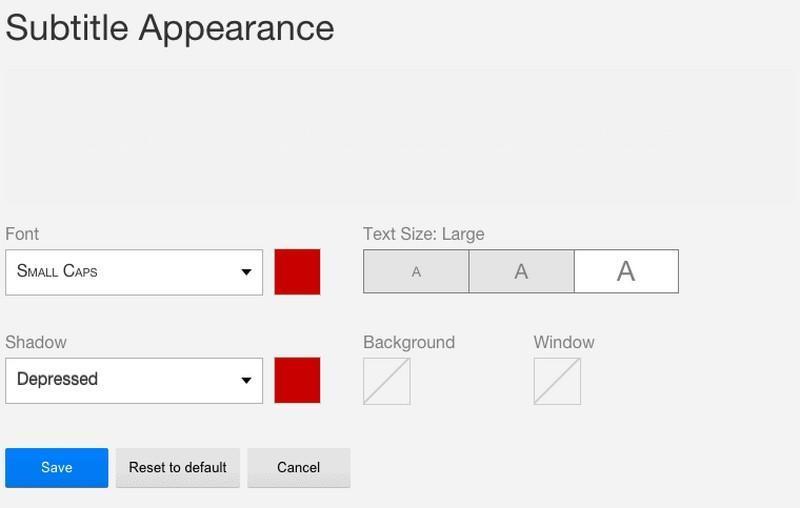
Note: You can’t follow these steps on the Netflix iOS app as it is available on Android. So, you need access to Netflix’s web version to change the subtitles settings (you can just use Safari or another browser on iOS).
Offline Viewing
Have you ever thought about downloading a few episodes of a show so you can watch’em when you don’t have internet? You are in luck as Netflix offers the option for offline viewing for Netflix originals and several other shows/movies.
Here’s how to download content on Netflix:
-
Open any title and tap on the Download icon.
-
Tap on Downloads at the bottom menu to view the download progress and already downloaded content.
On the Android version of the streaming app, you can also specify a particular location (SD card) for the downloads. On average, the download will remain available for 7 to 30 days but some expire in just 48 hours.
Lock Your Profile
Do you share your account with someone? Then you will know how people like to watch stuff on YOUR profile instead of theirs. Over the long run, this can cause all sorts of issues: Mess up your recommendations, fill your history, and so on.
You can easily prevent all of this by locking your profile through these steps:
-
Go to Manage Profiles > Profiles settings.
-
Select your profile and enable Profile Lock.
-
Set a 4-digit pin.
-
Save.
So a pin will be needed whenever someone tries to access your profile. This can be a game-changer for people who let multiple people access their Netflix account.

